

My 7 year old came back from park and shared her thought about creating an application that could follow the eyes of a person using webcam. Wink your left eye and the cartoon eye on screen winks back with its left eye. Wink your right and it does the same. But close both eyes for about a second and a buzzer goes off with a flashing “WAKE UP!” warning.
I was still trying to wrap my head around it, how did a 7-year-old, standing there with a ball in her hand, come up with an idea like this? Unable to hold back my curiosity, I asked her, how did you come up with this idea?
“How Did You Come Up With This?” Her Answer Surprised Me!
“I was tired from playing soccer, so I sat down to rest. A man next to me was on the phone, saying a cab driver almost fell asleep while driving and nearly had an accident. He said he wished there was a way to warn the driver incase he felt sleepy again. So I thought, what if an app could do that?”
That’s how a conversation she wasn’t even part of became the idea behind Wink & Wake: a webcam app that watches your eyes and sounds an alarm if they stay closed too long. She decided to build it with ChatGPT.
How She Turned the Idea Into an App With ChatGPT
She didn’t start with code. She started with an analysis on why and how to solve the problem.
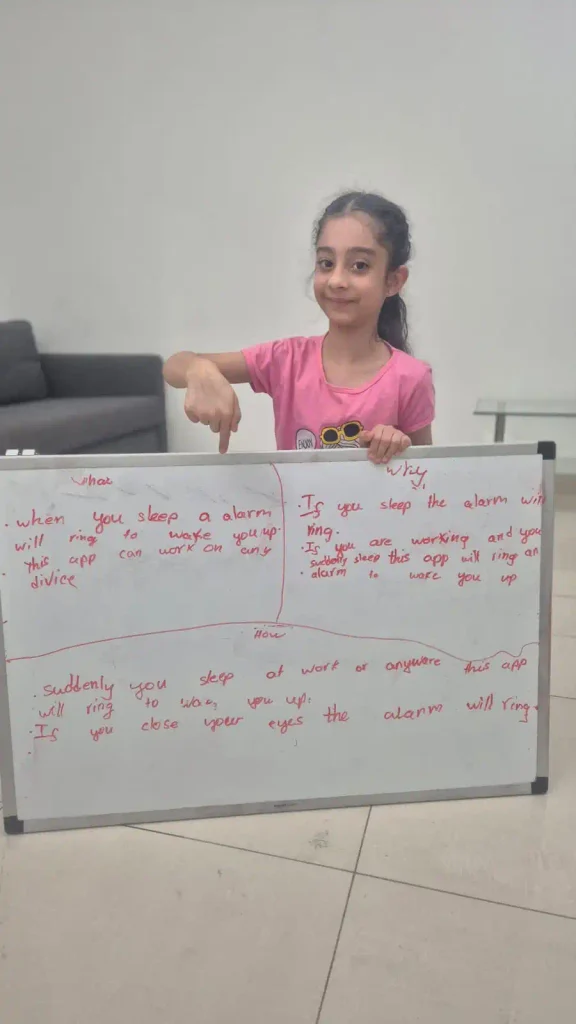
The first version of the idea was simple: if both eyes stay closed for about a second, sound an alarm.
Then she came up with a thought to add cartoon eyes to wink back when you wink, “because it should be fun, not scary, since drivers already have a serious job, and she didn’t want the app to add to the stress.”
The Prompt That Made It Work
We worked together to turn her ideas into a clear, detailed prompt, and ChatGPT wrote the code. This is what we wrote:-
Create an app that uses the computer’s/mobile's webcam to detect the user’s eye movements and respond visually and with sound.

Create eyes which will wink, when i wink my eyes and buzz an alarm when I close my eyes.  When I open my eyes, the sound should stop.

The application should display a pair of animated cartoon/human-like eyes on the screen. The application should look fun and not scary.
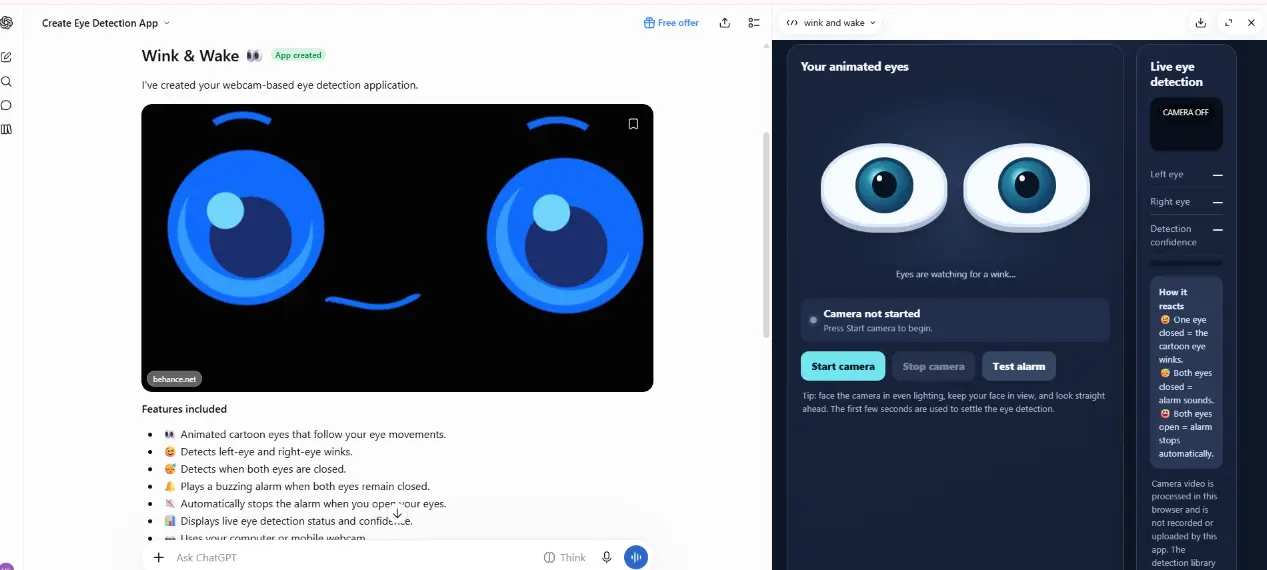
This is how the first version of the app looked like:
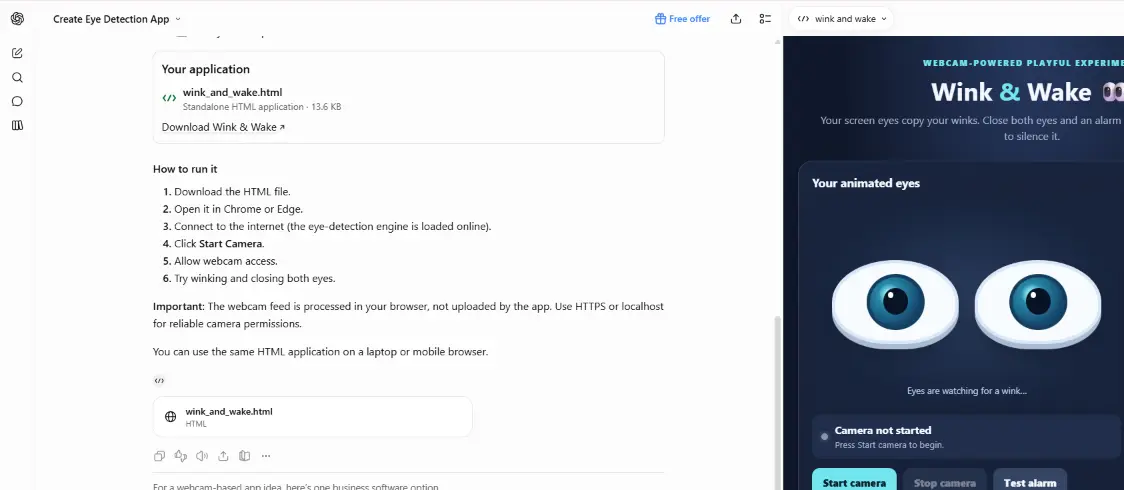
There were instructions also shared on how to use the app
From Her Idea to the Final Prompt
We thought of further modifying the app by making use of ChatGPT to make the prompt further more refined. Her original idea was simple, however it left computer guessing, how long is “a long time”, what counts as a wink and what counts as a blink? So we asked ChatGPT to expand her idea into a detailed prompt. She didn’t write the final prompt, but every core feature traces back to something she wanted.
Let me summarize what her original prompt had and how did ChatGPT fine tuned it in a professional looking prompt
| Her Idea | What the Final Prompt Turned it into |
|---|---|
| “eyes on the screen that wink back” | Left and right wink detection, with a rule so a normal blink doesn’t count as a wink |
| “buzz an alarm if you close your eyes” | An alarm after about 1 second of closed eyes, a buzzer made by the browser, and a flashing “WAKE UP!” warning |
| “Fun, not scary” | Cartoon eyes, a child-friendly look, and cheerful messages like “Nice wink!” |
| Added by ChatGPT, not her | Eye-openness measurement, calibration, a sensitivity slider, an error message if the camera is blocked, a privacy note, and a clean shutdown when the camera stops |
Create a fully standalone, interactive HTML page that uses the computer’s webcam to detect the user’s eye movements and respond visually and with sound.
Objective
Build a fun, polished Eye Wink & Closed-Eye Alarm web application.
The application should display a pair of animated cartoon/human-like eyes on the screen.
The webcam should monitor the user’s face and eyes in real time.
Core Behaviors
- Winking Detection
- When the user winks with the left eye, the corresponding displayed eye should wink.
- When the user winks with the right eye, the corresponding displayed eye should wink.
- The displayed eye should return to its normal open state when the user’s eye opens again.
- A wink should require a meaningful difference between the two eyes so that normal blinking is not incorrectly detected as a wink.
- Both Eyes Closed Detection
- Detect when both eyes are closed.
- If both eyes remain closed for approximately 1 second, trigger an alarm.
- The alarm should be a noticeable buzzing/beeping sound.
- The screen should also provide a strong visual warning such as:
- “⚠️ WAKE UP! EYES CLOSED!”
- flashing warning indicator
- animated warning eyes
- Stop the alarm automatically when the user opens their eyes again.
- Normal Blinking
- A normal blink, where both eyes briefly close, should NOT immediately trigger the alarm.
- Use a configurable threshold such as:
CLOSED_EYE_ALARM_DELAY = 1000milliseconds. - Make this value easy to modify near the top of the JavaScript code.
Webcam / Eye Tracking
Use a browser-compatible client-side computer-vision solution for face/eye landmark detection.
Important requirements:
- No backend.
- No server.
- No database.
- No installation.
- No external JavaScript frameworks that require a build process.
- The page must be a single
.htmlfile. - It should work by simply opening the HTML file in a modern browser.
If a computer-vision library is absolutely necessary, load it directly from a CDN and clearly explain that webcam/AI detection requires the browser to have access to the library. However, prioritize a solution that can function from a single HTML file.
Use facial landmarks/eye landmarks rather than simply detecting whether dark pixels exist.
Calculate an Eye Aspect Ratio (EAR) or equivalent eye-openness measurement for each eye.
Use separate thresholds for:
- left eye closed
- right eye closed
- both eyes closed
- wink detection
Allow these thresholds to be easily adjusted.
User Interface
Create an attractive child-friendly but modern interface.
Main screen
At the top:
👀 WINK & WAKE
Subtitle:
“Wink at me — but don’t fall asleep!”
Center the screen with two large animated eyes.
The eyes should have:
- pupils
- eyelids
- eyebrows
- smooth animations
- blinking/winking animation
- expressive reactions
For example:
Normal:
👁️ 👁️
Left wink:
😉 👁️
Right wink:
👁️ 😉
Both eyes closed:
😴 😴
When an alarm is active:
🚨 👀 🚨
Webcam preview
Show a small webcam preview in a corner.
Add a toggle:
Show Camera
The user should be able to hide/show the webcam preview.
If possible, mirror the webcam preview so it behaves like a mirror.
Status panel
Display real-time status:
Camera: Ready / Waiting / Error
Left Eye: Open / Closed
Right Eye: Open / Closed
Eye State: Normal / Left Wink / Right Wink / Both Closed
Alarm: OFF / 🚨 ON
Start button
Because browsers often require user interaction before accessing the webcam or playing audio, include a prominent:
▶ START EYE TRACKING
button.
When clicked:
- Request webcam permission.
- Initialize face/eye landmark detection.
- Initialize the alarm audio.
- Start monitoring the eyes.
Include:
⏹ STOP
to stop webcam tracking and release the camera.
Alarm Sound
Create the alarm using the browser’s Web Audio API rather than requiring an audio file.
The alarm should sound like a short repeating electronic buzzer.
Example behavior:
- buzzer ON
- short pause
- buzzer ON
- short pause
- repeat
When the user’s eyes open again:
- immediately stop the alarm
- change status to “Alarm OFF”
- remove the warning animation
Do not autoplay audio before the user clicks START.
Calibration
Include a small optional calibration section.
Button:
⚙ Calibrate Eyes
When clicked:
- Ask the user to look normally with both eyes open.
- Measure the normal eye openness.
- Ask the user to close both eyes.
- Measure the closed-eye values.
- Automatically calculate reasonable thresholds.
Also provide a manual sensitivity slider:
Detection Sensitivity:
Low ─────●───── High
The sensitivity should affect wink/closed-eye detection.
Detection Logic
Implement robust logic to minimize false positives.
Pseudo-logic:
if leftEyeClosed AND rightEyeClosed:
    if bothEyesClosedDuration >= ALARM_DELAY:
        startAlarm()
else:
    stopAlarm()

if leftEyeClosed AND rightEyeOpen:
    detectLeftWink()

if rightEyeClosed AND leftEyeOpen:
    detectRightWink()
Add temporal smoothing/debouncing so a single incorrectly detected frame doesn’t immediately change the state.
Use several consecutive frames or a short time window before changing states.
For example:
- Require approximately 100–200 ms of consistent wink detection.
- Require approximately 1000 ms of continuous both-eye closure before the alarm.
Make these values configurable.
Visual Feedback
When a wink is detected:
- Animate the corresponding cartoon eye closing.
- Show a small message such as:
“😉 Nice wink!”
When the left eye winks:
LEFT WINK
When the right eye winks:
RIGHT WINK
When both eyes are closed but the alarm delay has not yet elapsed:
Show:
“Eyes closed…”
with a small countdown/progress indicator.
Example:
Wake-up alarm in 0.7s…
When the alarm starts:
Large warning:
🚨 WAKE UP! 🚨
and:
YOUR EYES HAVE BEEN CLOSED TOO LONG!
Make the warning animation noticeable but not visually overwhelming.
Technical Requirements
The final output must be one complete standalone HTML file.
Use:
- HTML5
- CSS3
- Vanilla JavaScript
- WebRTC
getUserMedia()for webcam access - Web Audio API for the buzzer
- Browser-compatible face/eye landmark detection
Do not use:
- Python
- Node.js
- PHP
- backend servers
- databases
- React
- Vue
- Angular
- build tools
- package managers
All CSS and application JavaScript should be contained inside the HTML file.
If an external CDN is required for the eye/face landmark model, keep it to the minimum possible number of dependencies and explain this clearly in an on-screen “How it works” section.
Browser Compatibility
Optimize for current versions of:
- Google Chrome
- Microsoft Edge
- Firefox
Handle unsupported browsers gracefully.
If webcam access is unavailable, show a clear message:
“Camera access is required for eye tracking. Please allow camera permission and try again.”
If the page is opened directly using file:// and the browser blocks webcam access, explain that some browsers require a secure context such as https:// or localhost.
However, keep the HTML itself completely self-contained.
Privacy
Add a small privacy message:
“🔒 Your camera video is processed locally in your browser and is not uploaded to a server.”
Do not send webcam frames anywhere.
Do not record or save video.
Do not store biometric information.
Design
Use a polished modern interface with:
- responsive design
- rounded cards
- subtle shadows
- smooth animations
- large buttons
- accessible text
- mobile/tablet/desktop support
- dark/light friendly appearance
The page should feel like a finished mini-app rather than a programming demo.
Important Final Requirement
Return the complete HTML source code only.
The code must be ready to save as:
eye-wink-alarm.html
and open in a modern browser.
Before returning the code, check carefully for:
- JavaScript errors
- missing HTML elements
- missing functions
- webcam permission handling
- audio permission/autoplay restrictions
- correct left/right eye detection
- normal blink handling
- wink detection
- both-eyes-closed timing
- alarm start/stop behavior
- responsive layout
- proper cleanup when STOP is pressed
Make the implementation as reliable and smooth as possible.
Here is the final version of the app that was built using the prompt, refined with the help of ChatGPT. After you download it, unzip it and open it using Google Chrome or Firefox. Do remember to allow camera to access this application. Be assured, the privacy policy prompt added to this application will not save your video in the browser.
Click here to Download the Final AppCaution: – This is a learning project, not a safety device, and should never replace rest or be relied on while driving
How Did We Test the Eye Wink App?
After the app was built, we were hungry for the feedback and we ended up finally asking an IT employee to test the Eye Wink application

“Seeing the ‘Eye Wink’ application in action was truly inspiring. It is incredible to see a 7-year-old put this level of thought, creativity, and effort into building an app. Keep up the amazing work—the future of tech is bright with young innovators like you!”
Who’s behind this Idea?
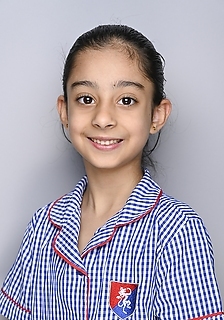
Jasnoor Kaur
The girl behind Wink & Wake App
Jasnoor is a 7 year-old student studying in British Curriculum School in UAE. She doesn’t think of herself as a coder. She thinks of herself as someone who notices things that don’t work and wonders how to fix them.
Wink & Wake is a learning project and the thinking behind it is real. Since that day, she hasn’t stopped. She has gone on to work on every other problem. The method is always the same: she spots the problem, explains it in her own words, and we work together to turn her idea into a clear prompt for AI.

Client Services Manager
Mandeep Singh, Jasnoor’s father is a Pharmacist and IT professional who loves working with his daughter, brainstorming day to day problems and making use of AI tools to solve it.
How to Build an App With Your Child Using ChatGPT: 6 Steps for Parents
You don’t need to know how to code. Here is the method we used with Jasnoor, which any parent can repeat.
1. Start with a real problem, not “let’s build an app.” Jasnoor’s idea came from a stranger’s phone call at the park. Ask your child, “What did you see today that didn’t work or could be better?” Problems are better starting points than app ideas.
2. Let your child explain it in their own words. Don’t correct or upgrade the idea yet. Write down exactly what they say, because the first version should be theirs.
3. Write a simple first prompt together. Our first prompt was only three short paragraphs. Describe what the app should do, who it’s for, and how it should feel. Jasnoor’s “fun, not scary” rule came from here.
4. Ask ChatGPT to sharpen the idea. Children’s ideas leave gaps. Jasnoor’s “a long time” needed a number, and “wink” needed to be told apart from “blink”. Try this:
“My 7-year-old had this app idea: [idea]. Ask me questions one at a time to clarify it, then write a detailed prompt for a single-file HTML app.”
5. Test it, give feedback, and repeat. Try the app together and tell ChatGPT what felt wrong. Then show it to someone outside the family, as we did.
6. Keep it safe.
- A parent should operate ChatGPT, since its terms set age requirements for minors.
- Don’t enter names, photos, or school details into prompts.
- Ask ChatGPT to explain the code in kid-friendly language, so your child learns what it does.
- Review any app that uses the camera or microphone before sharing it.